This tutorial is designed for intermediate developers. It will get you started, but you’ll need to tweak the template files to your own needs.
A few of the StudioPress child themes include a portfolio page, like Modern Portfolio and Jane. But what if you’ve found a theme you want and it doesn’t include this feature?
It’s actually not that difficult to add to any theme. And even if your theme already includes it, this plugin-based approach will ensure your portfolio will keep working when it comes time to change themes.
An Integrated Approach
Just like Event Calendar Integration, this is a feature that should be built using a plugin and your theme.
The plugin contains the functionality: registering a “portfolio” post type, a “portfolio categories” taxonomy, any necessary metaboxes…all of the backend features that should be theme-independent and stay with you when you change themes in the future.
The theme is responsible for styling how the portfolio looks. If you don’t make any changes to your theme, the portfolio will look like another blog (because it will inherit the styling from that section). In the future if you change themes, you’ll want to update the design of that theme with regards to your portfolio.
Set up the backend
 Install the Portfolio Post Type plugin. This will add a “Portfolio” post type below your “Posts”.
Add your portfolio items, making sure to add images for each one so the layout looks good in the next step.
If you go to yoursite.com/portfolio, you’ll see all your portfolio items showing up but it looks like a blog – just title and post content.
Styling your Portfolio
Create a theme file called archive-portfolio.php and place it in your child theme. Place this code in it:
| <?php | |
| /** | |
| * Portfolio Archive | |
| * | |
| */ | |
| /** | |
| * Display as Columns | |
| * | |
| */ | |
| function be_portfolio_post_class( $classes ) { | |
| global $wp_query; | |
| if( !$wp_query->is_main_query() ) | |
| return $classes; | |
| $columns = 3; | |
| $column_classes = array( '', '', 'one-half', 'one-third', 'one-fourth', 'one-fifth', 'one-sixth' ); | |
| $classes[] = $column_classes[$columns]; | |
| if( 0 == $wp_query->current_post % $columns ) | |
| $classes[] = 'first'; | |
| return $classes; | |
| } | |
| add_filter( 'post_class', 'be_portfolio_post_class' ); | |
| // Remove items from loop | |
| remove_action( 'genesis_entry_header', 'genesis_post_info', 12 ); | |
| remove_action( 'genesis_entry_content', 'genesis_do_post_content' ); | |
| remove_action( 'genesis_entry_footer', 'genesis_entry_footer_markup_open', 5 ); | |
| remove_action( 'genesis_entry_footer', 'genesis_post_meta' ); | |
| remove_action( 'genesis_entry_footer', 'genesis_entry_footer_markup_close', 15 ); | |
| /** | |
| * Add Portfolio Image | |
| * | |
| */ | |
| function be_portfolio_image() { | |
| echo wpautop( '<a href="' . get_permalink() . '">' . genesis_get_image( array( 'size' => 'medium' ) ). '</a>' ); | |
| } | |
| add_action( 'genesis_entry_content', 'be_portfolio_image' ); | |
| add_filter( 'genesis_pre_get_option_content_archive_thumbnail', '__return_false' ); | |
| // Move Title below Image | |
| remove_action( 'genesis_entry_header', 'genesis_entry_header_markup_open', 5 ); | |
| remove_action( 'genesis_entry_header', 'genesis_entry_header_markup_close', 15 ); | |
| remove_action( 'genesis_entry_header', 'genesis_do_post_title' ); | |
| add_action( 'genesis_entry_footer', 'genesis_entry_header_markup_open', 5 ); | |
| add_action( 'genesis_entry_footer', 'genesis_entry_header_markup_close', 15 ); | |
| add_action( 'genesis_entry_footer', 'genesis_do_post_title' ); | |
| genesis(); |
The first secton of code is breaking the portfolio into columns. Change the
$columns = 3 to however many columns you want (2-6). If your portfolio is not showing up in multiple columns, your theme might be missing the Column Classes CSS. Go to that link and copy/paste the CSS to your style.css file.
The second section is removing items we don’t want showing up in the loop. I’m removing the post info (date and author at top), post content, and post meta (categories at bottom). I’m also removing the markup for the entry’s footer since we no longer have a footer.
The third section is adding an image to replace the post content. I’m using the medium image size, which you can manage in Settings > Media. You might also consider creating your own image size in functions.php.
The fourth section moves the post title below the featured image.
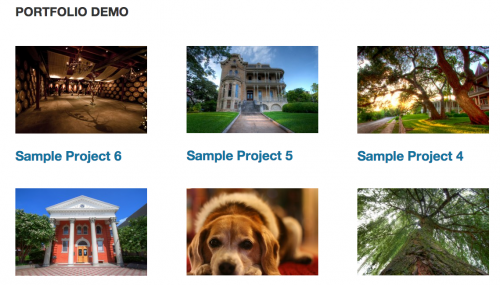
With that in place, you should have a pretty good portfolio set up. You might want to do some additional styling or changes to the template file, but now you have a starting point. Here’s what it looks like on my demo site:
Use same template for taxonomies
The plugin includes Portfolio Categories and Portfolio Tags taxonomies. You could duplicate the template file into taxonomy-portfolio_category.php and taxonomy-portfolio_tag.php, but that means if you make changes in the future you’ll need to update 3 files.
A cleaner approach is to put this in functions.php:
| <?php | |
| /** | |
| * Portfolio Template for Taxonomies | |
| * | |
| */ | |
| function be_portfolio_template( $template ) { | |
| if( is_tax( array( 'portfolio_category', 'portfolio_tag' ) ) ) | |
| $template = get_query_template( 'archive-portfolio' ); | |
| return $template; | |
| } | |
| add_filter( 'template_include', 'be_portfolio_template' ); |
That tells WordPress “if we’re on either the portfolio category or portfolio tag taxonomies, use the portfolio archive template file”.
Ordering projects
Right now the projects are showing up in reverse chronological order – the most recently published are at the top. But since this is a portfolio, you might want to put your most impressive projects at the top, regardless of post date.
Add this to your functions.php file:
| <?php | |
| /** | |
| * Add 'page-attributes' to Portfolio Post Type | |
| * | |
| * @param array $args, arguments passed to register_post_type | |
| * @return array $args | |
| */ | |
| function be_portfolio_post_type_args( $args ) { | |
| $args['supports'][] = 'page-attributes'; | |
| return $args; | |
| } | |
| add_filter( 'portfolioposttype_args', 'be_portfolio_post_type_args' ); | |
| /** | |
| * Sort projects by menu order | |
| * | |
| */ | |
| function be_portfolio_query( $query ) { | |
| if( $query->is_main_query() && !is_admin() && ( is_post_type_archive( 'portfolio' ) || is_tax( array( 'portfolio_category', 'portfolio_tag' ) ) ) ) { | |
| $query->set( 'orderby', 'menu_order' ); | |
| $query->set( 'order', 'ASC' ); | |
| } | |
| } | |
| add_action( 'pre_get_posts', 'be_portfolio_query' ); |
You can now use the “Page Attributes” box in the right column when editing a portfolio item to set the order, or install a plugin like Simple Page Ordering which will let you drag them around from the main portfolio edit screen.

Phil says
yeah a bit strange – i will keep fiddling with it Bill
thanks again
Phil
Phil says
Bill
think i sorted it — i noticed that in the wordpress SETTINGS > READING the “Blog pages show at most” parameter was set to 1 POST [not sure why it was set at that value] but I amended that to 12 and it’s all working fine now
Phil says
hi Bill
just wanted to ask you about the POST NAVIGATION on the single post pages for the PORTFOLIO
if you look at http://www.fingerprintdigitalmedia.com/shelter-harbor-press/portfolio/the-elements/
how can i show the POST NAVIGATION [showing the next and previous posts] plus the PORTFOLIO CATEGORY to be shown beside the ‘Filed Under’ text tag ?
thanks
Phil
Bill Erickson says
Use previous_post_link() and next_post_link() for the post navigation.
Filter ‘genesis_post_meta’ and use [get_terms taxonomy=”portfolio_category”] to list the categories.
Phil says
Thanks Bill
“Use previous_post_link() and next_post_link() for the post navigation.”
does that go in the functions.php?
thanks
Phil
Bill Erickson says
I would put it in archive-portfolio.php along with all the other portfolio related code, but you can place it wherever you like.
Phil says
Thanks – will give it a go
Phil says
trying this in both the archive-portfolio.php and functions.php but not showing the POST NAVIGATION links in either case.
anything you spot that’s wrong with this Bill?
function portfolio_post_nav_links() {
if( ‘portfolio’ == get_post_type() && is_single() ) {?>
<?php
} }
add_action('genesis_entry_footer', 'portfolio_post_nav_links', 5 );
Courtney A. says
Hi Bill!
I’ve set up a portfolio the way you have outlined here (super easy for a novice like me!), but my portfolio page displays with a sidebar. Is there any way I can get it to display full-width? Thanks.
Bill Erickson says
In your archive-portfolio.php file, include this:
add_filter( 'genesis_pre_get_option_site_layout', '__genesis_return_full_width_content' );Courtney A. says
Thanks so much!
Chrissy says
Bill,
I just wanted to say thank you for this post. I’m using Parallax which has no built-in Portfolio option, and this tutorial worked beautifully. I’ve tried at least 5 different CPT Portfolio tutorials with no luck or lots of confusion,and this did the trick!
Joseph says
Hi Bill
Am I right in think that this https://gist.github.com/billerickson/335d6772c87b19e40b8b will allow me to change the main grid page for /portfolio/ to anything I like ….com/whats-on/ as I’m not having much luck
Bill Erickson says
Yes. The post type remains ‘portfolio’, but that code changes the archive URL (/whats-on) and the single post URL (/whats-on/post-name)
Joseph says
Hi Bill,
That’s not what I’m getting. The code has been inserted into the functions.php at the bottom like so…
/**
* Portfolio Post Type Args
*
*/
function be_portfolio_post_type_args( $args ) {
$args[‘rewrite’] = array( ‘slug’ => ‘whats-on’ );
return $args;
}
add_filter( ‘portfolioposttype_args’, ‘be_portfolio_post_type_args’ );
but when going to the url culture.org.uk/whats-on
it redirects to culture.org.uk/portfolio/whats-on-2/
Jamie Mitchell says
Did you try updating your permalinks, that often causes a not found.
Joseph says
I did, but would that involved changing them saving and than changing back?
Bill Erickson says
Are you using the Portfolio Post Type plugin described above? That’s a filter inside that plugin, so if you created your own custom post type or are using a different plugin, it won’t work.
To update the permalink structure, you go to Settings > Permalinks and click Save. You don’t have to change anything on the page.
Do you already have a page called /whats-on or /what-on-2 ? It might be in your trash. Delete all pages that have these URL slugs, empty your trash, then update the permalinks again and see if that works.
Joseph says
Great that sorted it. i was using the wrong plug in. one last thing do i use the plugin to change the name of the page that appears on the browser tab
Bill Erickson says
You can use that filter to customize all the post type arguments, including the name of the post type which is what I think you’re referring to.
Jamie Mitchell says
no, you only need to visit the permalinks page and hit save, it acts like a refresh.
but if that didn’t solve it then it is something else, i’ll let the master reply to this one 🙂