This tutorial is designed for intermediate developers. It will get you started, but you’ll need to tweak the template files to your own needs.
A few of the StudioPress child themes include a portfolio page, like Modern Portfolio and Jane. But what if you’ve found a theme you want and it doesn’t include this feature?
It’s actually not that difficult to add to any theme. And even if your theme already includes it, this plugin-based approach will ensure your portfolio will keep working when it comes time to change themes.
An Integrated Approach
Just like Event Calendar Integration, this is a feature that should be built using a plugin and your theme.
The plugin contains the functionality: registering a “portfolio” post type, a “portfolio categories” taxonomy, any necessary metaboxes…all of the backend features that should be theme-independent and stay with you when you change themes in the future.
The theme is responsible for styling how the portfolio looks. If you don’t make any changes to your theme, the portfolio will look like another blog (because it will inherit the styling from that section). In the future if you change themes, you’ll want to update the design of that theme with regards to your portfolio.
Set up the backend
 Install the Portfolio Post Type plugin. This will add a “Portfolio” post type below your “Posts”.
Add your portfolio items, making sure to add images for each one so the layout looks good in the next step.
If you go to yoursite.com/portfolio, you’ll see all your portfolio items showing up but it looks like a blog – just title and post content.
Styling your Portfolio
Create a theme file called archive-portfolio.php and place it in your child theme. Place this code in it:
| <?php | |
| /** | |
| * Portfolio Archive | |
| * | |
| */ | |
| /** | |
| * Display as Columns | |
| * | |
| */ | |
| function be_portfolio_post_class( $classes ) { | |
| global $wp_query; | |
| if( !$wp_query->is_main_query() ) | |
| return $classes; | |
| $columns = 3; | |
| $column_classes = array( '', '', 'one-half', 'one-third', 'one-fourth', 'one-fifth', 'one-sixth' ); | |
| $classes[] = $column_classes[$columns]; | |
| if( 0 == $wp_query->current_post % $columns ) | |
| $classes[] = 'first'; | |
| return $classes; | |
| } | |
| add_filter( 'post_class', 'be_portfolio_post_class' ); | |
| // Remove items from loop | |
| remove_action( 'genesis_entry_header', 'genesis_post_info', 12 ); | |
| remove_action( 'genesis_entry_content', 'genesis_do_post_content' ); | |
| remove_action( 'genesis_entry_footer', 'genesis_entry_footer_markup_open', 5 ); | |
| remove_action( 'genesis_entry_footer', 'genesis_post_meta' ); | |
| remove_action( 'genesis_entry_footer', 'genesis_entry_footer_markup_close', 15 ); | |
| /** | |
| * Add Portfolio Image | |
| * | |
| */ | |
| function be_portfolio_image() { | |
| echo wpautop( '<a href="' . get_permalink() . '">' . genesis_get_image( array( 'size' => 'medium' ) ). '</a>' ); | |
| } | |
| add_action( 'genesis_entry_content', 'be_portfolio_image' ); | |
| add_filter( 'genesis_pre_get_option_content_archive_thumbnail', '__return_false' ); | |
| // Move Title below Image | |
| remove_action( 'genesis_entry_header', 'genesis_entry_header_markup_open', 5 ); | |
| remove_action( 'genesis_entry_header', 'genesis_entry_header_markup_close', 15 ); | |
| remove_action( 'genesis_entry_header', 'genesis_do_post_title' ); | |
| add_action( 'genesis_entry_footer', 'genesis_entry_header_markup_open', 5 ); | |
| add_action( 'genesis_entry_footer', 'genesis_entry_header_markup_close', 15 ); | |
| add_action( 'genesis_entry_footer', 'genesis_do_post_title' ); | |
| genesis(); |
The first secton of code is breaking the portfolio into columns. Change the
$columns = 3 to however many columns you want (2-6). If your portfolio is not showing up in multiple columns, your theme might be missing the Column Classes CSS. Go to that link and copy/paste the CSS to your style.css file.
The second section is removing items we don’t want showing up in the loop. I’m removing the post info (date and author at top), post content, and post meta (categories at bottom). I’m also removing the markup for the entry’s footer since we no longer have a footer.
The third section is adding an image to replace the post content. I’m using the medium image size, which you can manage in Settings > Media. You might also consider creating your own image size in functions.php.
The fourth section moves the post title below the featured image.
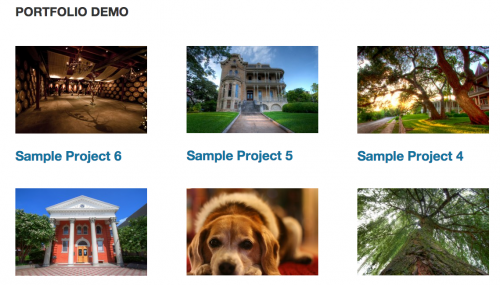
With that in place, you should have a pretty good portfolio set up. You might want to do some additional styling or changes to the template file, but now you have a starting point. Here’s what it looks like on my demo site:
Use same template for taxonomies
The plugin includes Portfolio Categories and Portfolio Tags taxonomies. You could duplicate the template file into taxonomy-portfolio_category.php and taxonomy-portfolio_tag.php, but that means if you make changes in the future you’ll need to update 3 files.
A cleaner approach is to put this in functions.php:
| <?php | |
| /** | |
| * Portfolio Template for Taxonomies | |
| * | |
| */ | |
| function be_portfolio_template( $template ) { | |
| if( is_tax( array( 'portfolio_category', 'portfolio_tag' ) ) ) | |
| $template = get_query_template( 'archive-portfolio' ); | |
| return $template; | |
| } | |
| add_filter( 'template_include', 'be_portfolio_template' ); |
That tells WordPress “if we’re on either the portfolio category or portfolio tag taxonomies, use the portfolio archive template file”.
Ordering projects
Right now the projects are showing up in reverse chronological order – the most recently published are at the top. But since this is a portfolio, you might want to put your most impressive projects at the top, regardless of post date.
Add this to your functions.php file:
| <?php | |
| /** | |
| * Add 'page-attributes' to Portfolio Post Type | |
| * | |
| * @param array $args, arguments passed to register_post_type | |
| * @return array $args | |
| */ | |
| function be_portfolio_post_type_args( $args ) { | |
| $args['supports'][] = 'page-attributes'; | |
| return $args; | |
| } | |
| add_filter( 'portfolioposttype_args', 'be_portfolio_post_type_args' ); | |
| /** | |
| * Sort projects by menu order | |
| * | |
| */ | |
| function be_portfolio_query( $query ) { | |
| if( $query->is_main_query() && !is_admin() && ( is_post_type_archive( 'portfolio' ) || is_tax( array( 'portfolio_category', 'portfolio_tag' ) ) ) ) { | |
| $query->set( 'orderby', 'menu_order' ); | |
| $query->set( 'order', 'ASC' ); | |
| } | |
| } | |
| add_action( 'pre_get_posts', 'be_portfolio_query' ); |
You can now use the “Page Attributes” box in the right column when editing a portfolio item to set the order, or install a plugin like Simple Page Ordering which will let you drag them around from the main portfolio edit screen.

Phil Wragg says
Hi Bill – VERY basic question I have followed the above – not sure where or if the portfolio page with thumbnails has been created. Added a couple of portfolio items – link to detail page of one included. Many thanks
Bill Erickson says
Here it is. If you turn on pretty permalinks in Settings > Permalinks, the URL will be yoursite.com/portfolio, and the individual portfolio items will be yoursite.com/portfolio/portfolio-item
John says
Thank you for the detailed tutorial. I always learn so much from your posts. You are helping me and I am sure a lot of others.
I have previously read you recommend putting CPTs in a plugin so they are not theme depended. I am wondering what about the CSS associated with the CPTs. Would you include that in your theme CSS file or would you have a CSS file in the plugin?
Thanks!
Bill Erickson says
Design-related aspects belong in the theme.
So if you built an event calendar, the post type, metaboxes, and query customization (sorting events by event date) belongs in the plugin. Styling what your event listing looks like belongs in the theme.
John says
Thank you for the quick reply.
I will split it up as you suggest. Makes sense.
Steve Wharton says
I’m learning tons from your tutorials. I came to this post after studying your post, “How to Build a Genesis Child Theme.” Further question to your answer, re: “Styling what your event listing looks like belongs in the theme…”
We’re using Genesis and Executive Pro child theme for our work/personal website. Your directions to create a child-theme and plug-ins to segregate customizations (so they don’t get over-written by changing themes or theme updates) make total sense.
But, since there’s already a child theme, Executive Pro, where/how do recommend we reference our own custom.css file (in the existing stylesheet style.css?) in Executive Pro to tie them together, so our personal website tweaks and customizations do not get overwritten by developer updates to the premium child theme itself? Or maybe there is no best-practice (child to a child-theme?) altogether for this scenario? Thanks, Bill.
Bill Erickson says
A child theme holds your site-specific design. So if you’re using an existing child theme as a starting point, the first step is to rename it. IE, instead of “Executive Pro” you’d name it “My Client’s Site”. Then make whatever changes you like to it.
There will be no developer updates to the child theme. Child themes are not to be updated.
Soretire says
I think the issue Steve is referring to is if there is a new version of /update to the ‘base’ child theme by the developer (StudioPress in this instance) which he will want his customisation to benefit from. There is a video by Katrinah which describe an approach that work. Basically she recommends creating a custom.css which is included in the wp_head(). All changes will then be done in the custom.css file which would not be changed whenever the child theme is updated.
The video is at http://77webstudio.com/safely-customize-genesis-child-theme/
Bill Erickson says
WordPress doesn’t support grandfather themes for a reason – it unnecessarily increases the complexity of theme development. And StudioPress does a good job of not changing themes after they come out, so this shouldn’t be an issue.
That said, if you absolutely must make your customizations in a way that doesn’t modify the child theme, create a plugin called “Site Customizations” and include all your customizations in there. Create a stylesheet that’s enqueued with ‘child-theme-css’ listed as a dependency (so it shows up after your child theme’s CSS). Also include all your functions that modify Genesis and the child theme. If you needed to create new template files, use the ‘template_include’ filter to load a template file from the plugin rather than theme.
The only time I could see this being a possible solution is if you design a Genesis child theme that is to be used across dozens of sites, plan to continually make changes to this child theme, and each site might have some specific customizations required. I would try my best to build the child theme in a way that the changes could be made through the WP Customizer (ex: a logo upload for changing site’s logo, color selector for changing link colors…), but this “plugin as grandfather theme” approach would work.
pitt says
I have followed this tutorial and when i set the column >1, it will break the right slider and come to a mess… any solution for this ?
btw, i could use the action “be_portfolio_image” and as duplicated image show up … i have removed this action but i do not know where i can set the image size to show on the portfolio page ….
i am currently using news pro theme
Robin says
I encountered the same issue as Sridhar, but resolved it by wrapping lines 12-18 of your template in a conditional for is_main_query. Portfolio is displaying correctly and so are my widgets. Would this not be a better alternative than the CSS?
Pitt Cheung says
I am currently encountering the problem but i am not newbie on coding, would you share which coding you have made on that ?
Bill Erickson says
Hmm, if that works then it is a better solution. I’ll have to do some testing with that. Thanks!
Robin says
https://gist.github.com/robincornett/10661044
I posted my archive-portfolio.php as a gist if anyone would like to borrow it. Other than the conditional and removing the be_portfolio_image, it is the same, I think.
Brian Dusablon says
Hi Bill – curious to see if you found Robin’s solution to be effective.
Bill Erickson says
Yep, I updated the plugin to use that. It made a bunch of people angry since they were depending on it applying to other loops (like blog page template or custom loop on certain page), but now the plugin works as it was originally intended.
Edee Lemonier says
You just saved my neck so big it isn’t even funny – thank you so much!!! Client with a Woo Theme and a portfolio page that went belly up. Just added this bad boy to a Genesis theme and thank everything it’s awesome!!
Jamie Mitchell says
Hi Bill
This is a great idea putting the portfolio post type into a plugin, as it is so commonly needed in websites.
What if I wanted to show the portfolio post type on a custom page template, or even the home page (say on a portfolio site, where the portfolio would be on the actual home page)
Should i create a custom loop in a front-page.php template
What would be your recommendation?
I want to make sure all the html5 structure and Schema is used, just like if it was an archive template.
thansk so much
Jamie Mitchell says
OOOH Bill
think i worked this one out myself, maybe i’m getting smarter 🙂
https://gist.github.com/jamiemitchell/10957259
Bill Erickson says
You got it!
James says
Hi Bill,
Thanks for the tutorial. It saved me a lot of time…Didn’t know moving things around in Genesis was as easy as changing the hook number (the last parameter in the remove and add action lines….not sure if I said that right?).
Bill Erickson says
Yep, that’s the priority. Lower number means it runs sooner. If you don’t provide a number, it uses 10 as the default.
Clara says
Hi, great post!
I’m following your tutorial and I need to change the portfolio url slug to ‘products’.
I’m new in genesis and still don’t know all the hooks and funcions.
Do you know how to do that?
Thanks!
Bill Erickson says
You can change the slug to products by adding this to your theme’s functions.php file or a core functionality plugin: https://gist.github.com/billerickson/335d6772c87b19e40b8b
Clara says
Thank you very much!!
Sorry about my unkowledge but how can I know this functions? for example, I see this function and now I’m triyng to change the name of the custom post that appears in the wordpress menu, but I can’t understand how it works.
I just buy genesis framwork and I don´t know how to learn to use it for theme development.
Can you recommend me something?
Thanks a lot!
Bill Erickson says
Here’s some services you can hire to help with customizations:
http://werkpress.com/
http://www.codeable.io
http://www.elto.com
http://www.wpcurve.com
Cara says
Hi there,
I’m wondering if there is a way to create a page of items filtered by category. Say I had a category inside my portfolio titled ‘photos’ or something like that, is there a way to create a portfolio page of just the items in the photos category?
Thanks!
Bill Erickson says
Yes, just go to the category’s archive page. If you’re using the plugin I linked to above, the URL would be yoursite.com/portfolio_category/photos
Jason Hobbs says
Hey Bill,
Awesomely helpful tutorial. I kept getting the white screen of death until I removed the last period on line 40. Did I do something wrong or was that a typo? Here is the code that worked for me: https://gist.github.com/214981f7974f075a31ea
Thanks again!
Bill Erickson says
Thanks for that, fixed the typo. I messed it up a few days ago when I made the image a link.