This tutorial is designed for intermediate developers. It will get you started, but you’ll need to tweak the template files to your own needs.
A few of the StudioPress child themes include a portfolio page, like Modern Portfolio and Jane. But what if you’ve found a theme you want and it doesn’t include this feature?
It’s actually not that difficult to add to any theme. And even if your theme already includes it, this plugin-based approach will ensure your portfolio will keep working when it comes time to change themes.
An Integrated Approach
Just like Event Calendar Integration, this is a feature that should be built using a plugin and your theme.
The plugin contains the functionality: registering a “portfolio” post type, a “portfolio categories” taxonomy, any necessary metaboxes…all of the backend features that should be theme-independent and stay with you when you change themes in the future.
The theme is responsible for styling how the portfolio looks. If you don’t make any changes to your theme, the portfolio will look like another blog (because it will inherit the styling from that section). In the future if you change themes, you’ll want to update the design of that theme with regards to your portfolio.
Set up the backend
 Install the Portfolio Post Type plugin. This will add a “Portfolio” post type below your “Posts”.
Add your portfolio items, making sure to add images for each one so the layout looks good in the next step.
If you go to yoursite.com/portfolio, you’ll see all your portfolio items showing up but it looks like a blog – just title and post content.
Styling your Portfolio
Create a theme file called archive-portfolio.php and place it in your child theme. Place this code in it:
| <?php | |
| /** | |
| * Portfolio Archive | |
| * | |
| */ | |
| /** | |
| * Display as Columns | |
| * | |
| */ | |
| function be_portfolio_post_class( $classes ) { | |
| global $wp_query; | |
| if( !$wp_query->is_main_query() ) | |
| return $classes; | |
| $columns = 3; | |
| $column_classes = array( '', '', 'one-half', 'one-third', 'one-fourth', 'one-fifth', 'one-sixth' ); | |
| $classes[] = $column_classes[$columns]; | |
| if( 0 == $wp_query->current_post % $columns ) | |
| $classes[] = 'first'; | |
| return $classes; | |
| } | |
| add_filter( 'post_class', 'be_portfolio_post_class' ); | |
| // Remove items from loop | |
| remove_action( 'genesis_entry_header', 'genesis_post_info', 12 ); | |
| remove_action( 'genesis_entry_content', 'genesis_do_post_content' ); | |
| remove_action( 'genesis_entry_footer', 'genesis_entry_footer_markup_open', 5 ); | |
| remove_action( 'genesis_entry_footer', 'genesis_post_meta' ); | |
| remove_action( 'genesis_entry_footer', 'genesis_entry_footer_markup_close', 15 ); | |
| /** | |
| * Add Portfolio Image | |
| * | |
| */ | |
| function be_portfolio_image() { | |
| echo wpautop( '<a href="' . get_permalink() . '">' . genesis_get_image( array( 'size' => 'medium' ) ). '</a>' ); | |
| } | |
| add_action( 'genesis_entry_content', 'be_portfolio_image' ); | |
| add_filter( 'genesis_pre_get_option_content_archive_thumbnail', '__return_false' ); | |
| // Move Title below Image | |
| remove_action( 'genesis_entry_header', 'genesis_entry_header_markup_open', 5 ); | |
| remove_action( 'genesis_entry_header', 'genesis_entry_header_markup_close', 15 ); | |
| remove_action( 'genesis_entry_header', 'genesis_do_post_title' ); | |
| add_action( 'genesis_entry_footer', 'genesis_entry_header_markup_open', 5 ); | |
| add_action( 'genesis_entry_footer', 'genesis_entry_header_markup_close', 15 ); | |
| add_action( 'genesis_entry_footer', 'genesis_do_post_title' ); | |
| genesis(); |
The first secton of code is breaking the portfolio into columns. Change the
$columns = 3 to however many columns you want (2-6). If your portfolio is not showing up in multiple columns, your theme might be missing the Column Classes CSS. Go to that link and copy/paste the CSS to your style.css file.
The second section is removing items we don’t want showing up in the loop. I’m removing the post info (date and author at top), post content, and post meta (categories at bottom). I’m also removing the markup for the entry’s footer since we no longer have a footer.
The third section is adding an image to replace the post content. I’m using the medium image size, which you can manage in Settings > Media. You might also consider creating your own image size in functions.php.
The fourth section moves the post title below the featured image.
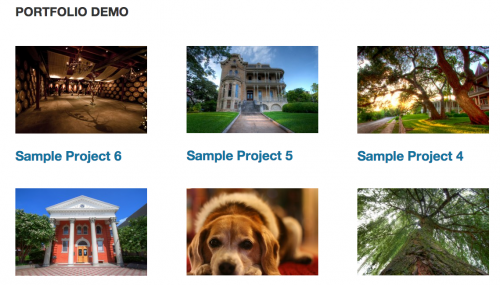
With that in place, you should have a pretty good portfolio set up. You might want to do some additional styling or changes to the template file, but now you have a starting point. Here’s what it looks like on my demo site:
Use same template for taxonomies
The plugin includes Portfolio Categories and Portfolio Tags taxonomies. You could duplicate the template file into taxonomy-portfolio_category.php and taxonomy-portfolio_tag.php, but that means if you make changes in the future you’ll need to update 3 files.
A cleaner approach is to put this in functions.php:
| <?php | |
| /** | |
| * Portfolio Template for Taxonomies | |
| * | |
| */ | |
| function be_portfolio_template( $template ) { | |
| if( is_tax( array( 'portfolio_category', 'portfolio_tag' ) ) ) | |
| $template = get_query_template( 'archive-portfolio' ); | |
| return $template; | |
| } | |
| add_filter( 'template_include', 'be_portfolio_template' ); |
That tells WordPress “if we’re on either the portfolio category or portfolio tag taxonomies, use the portfolio archive template file”.
Ordering projects
Right now the projects are showing up in reverse chronological order – the most recently published are at the top. But since this is a portfolio, you might want to put your most impressive projects at the top, regardless of post date.
Add this to your functions.php file:
| <?php | |
| /** | |
| * Add 'page-attributes' to Portfolio Post Type | |
| * | |
| * @param array $args, arguments passed to register_post_type | |
| * @return array $args | |
| */ | |
| function be_portfolio_post_type_args( $args ) { | |
| $args['supports'][] = 'page-attributes'; | |
| return $args; | |
| } | |
| add_filter( 'portfolioposttype_args', 'be_portfolio_post_type_args' ); | |
| /** | |
| * Sort projects by menu order | |
| * | |
| */ | |
| function be_portfolio_query( $query ) { | |
| if( $query->is_main_query() && !is_admin() && ( is_post_type_archive( 'portfolio' ) || is_tax( array( 'portfolio_category', 'portfolio_tag' ) ) ) ) { | |
| $query->set( 'orderby', 'menu_order' ); | |
| $query->set( 'order', 'ASC' ); | |
| } | |
| } | |
| add_action( 'pre_get_posts', 'be_portfolio_query' ); |
You can now use the “Page Attributes” box in the right column when editing a portfolio item to set the order, or install a plugin like Simple Page Ordering which will let you drag them around from the main portfolio edit screen.

Craig Grella says
Bill,
you include “portfolio_category” in the section on template filter. Does that need to be replaced with specific categories, or is that the general slug for anything coming through that post type_category?
Bill Erickson says
The plugin I used in this tutorial creates a taxonomy called “portfolio_category” and one called “portfolio_tag”. So if you’re using that plugin, you don’t need to change anything.
If you created a different taxonomy, you’d use your new taxonomy’s slug instead.
Craig Grella says
thanks Bill.
exelexys says
How ironic. Just spent all day yesterday integrating StudioPress Executive Pro portfolio into Agency Pro!
Your implementation seems cleaner and more straightforward than two others used as references.
Tempted to rip it out and try yours. Let me go take a walk until the feeling subsides. =)
Dave Young says
Wow Bill, this is great addition. I get a few requests for portfolio type pages and this makes dropping them together a real cinch. Nice work, thanks!
James Burgos says
If this is out-of-scope please let me know and I’ll repost on the fb group page.
Is there a way without creating additional markup using existing genesis filters and hooks to unhook the permalink from the post title and post thumbnail and rehook it so that it encloses those elements in a single <a>titlethumbnail</a>.
Bill Erickson says
This might work: https://gist.github.com/billerickson/9376932
Instead of adding genesis_do_post_title() in the title area, I created a new function that listed an unlinked title.
I then added an opening ‘a’ element to the very top (genesis_entry_header with priority of 1) and closed the ‘a’ at the bottom (genesis_entry_footer with a priority of 40).
Untested.
James Burgos says
Thanks Bill. I’ll give that shot. If anything, it’ll set me on the right course. : )
James Burgos says
DOH again. Sorry
If this is out-of-scope please let me know and I’ll repost on the fb group page.
is there a way without creating additional markup using existing genesis filters and hooks to unhook the permalink from the post title and post thumbnail and rehook it so that it encloses those elements in a single wrapping “a” element.
Katie Rosebraugh says
I’m glad you posted this. I was going to ask you how to do this but now I don’t have to! Thank you!
Hannah says
This is a nice way of creating a portfolio. I spent all yesterday creating a portfolio with a different approach and it was a mess. I should have taken a walk as well… but no, I ripped it all out, took your approach and messed it up. Now it is pulling 2 images… 🙁 any idea where I went wrong?
Bill Erickson says
Go to http://gist.github.com, copy/paste the relevant files (functions.php, post type archive file…) and then post the link here and I’ll take a look
Hannah Eisenberg says
Thank you, here are the files:
https://gist.github.com/anonymous/188a5e436f41e603a10d
https://gist.github.com/anonymous/331bb491aebc668a3e19
Please let me now if you have trouble opening them. I basically get one clickable picture above one not-clickable picture and the the headline.
you can see the result here: http://organicseopress.com/portfolio/
Bill Erickson says
The clickable one is provided by Genesis (using the
genesis_do_post_image()function). The non-clickable one is frombe_portfolio_image()in archive-portfolio.php. So remove this function.Julia Sydnor says
Great post, Bill. Is there any benefit to using the Portfolio Post Type plugin vs adding a custom post type in functions.php?
Bill Erickson says
It’s a good idea for functionality like this to go in a plugin, not a theme. That way if/when you change themes, you don’t lose all your content. So you can use a public plugin like Portfolio Post Type, or create your own core functionality plugin with the
register_post_type()in it.Julia Sydnor says
Gotcha. Thanks!
Niall Madhoo says
Hi Bill
Thanks a lot for this code. It’s much simpler than the code you posted a few months ago and I think it’s much better for conversion to have just the images or logos linking to a case study or more information rather than filtering by taxonomy like it was before.
Sridhar Katakam (@srikat) says
The column classes are being applied to entries output by Genesis Featured widgets as well (using the built-in ‘Genesis – Featured Page’ widget). Is there a way to restrict the filter to only posts inside the main content area?
Bill Erickson says
This is because the Featured Posts/Pages widgets are poorly built. They use query_posts() rather than a new WP Query. This makes WordPress think this is the main loop, so anything that applies to the main loop (like post classes) is also applied here.
A hacky fix is to put something like this in your stylesheet:
.featuredpost .one-half { float: none; margin: 0; width: 100%;}There is an open issue about this in the Genesis git repo, and I’m hoping it will get addressed if/when the widget is rebuilt for HTML5.
Personally, I remove all the Genesis widgets from my clients’ sites ( https://gist.github.com/billerickson/9738336 )
Sridhar Katakam (@srikat) says
Thanks for your reply Bill. I’ve included the CSS accordingly in my article, http://sridharkatakam.com/staff-grid-genesis-clickable-featured-images-opening-excerpts-lightbox-popup/
Do you know any that’s done properly? Which one do you use?
https://wordpress.org/plugins/genesis-featured-widget-amplified/
https://wordpress.org/plugins/genesis-featured-page-advanced/
https://wordpress.org/plugins/genesis-featured-page-extended/
https://wordpress.org/plugins/genesis-featured-content-widget/
Bill Erickson says
I haven’t reviewed the plugins, but unless they completely rewrote how the Featured Post widget does its queries then they probably all suffer from the same problem.
Depending on the need, I’ll either write my own plugin for a client or use Display Posts Shortcode in a text widget.
David Edwards says
Hi Bill,
As somewhat of a novice to the Genesis world, I find your comment on the featured post/page widget being poorly written very interesting. Can you expand on the issues or more information regarding the problem? Maybe a blog post on it would be good?
Cheers!
Bill Erickson says
On line 114-116 of /genesis/lib/widgets/featured-post-widget.php you’ll see this: https://gist.github.com/billerickson/10385218
Instead of doing a custom query, they are overwriting the main WordPress query, $wp_query. This means any code you have that’s set to run on the main query also runs in this widget, since they are saying this is also the main query.
So if you’re using my Genesis Grid plugin, which breaks your main blog query into a grid, it will also break your Featured Posts widget into a grid. I get issues posted in my support forum like this all the time. It’s really annoying because there’s no way I can fix it in my plugin – only Genesis can fix it in the theme.