I’ve been building a lot of galleries using WordPress’ built-in gallery feature. The biggest issue is that the gallery feature is rather hidden. You have to click the “Upload Image” icon (which itself is hard for people new to WordPress to find), then click the “Gallery” tab.
To make it easier for my clients, I’ve written a simple plugin called Gallery Metabox. This adds a metabox below the post editor that displays all the attached images. It also has a lot of filters in place for a developer to customize it specifically to the project (see the plugin page for more information).
For instance, if you’re adding a custom field to the uploader to specify which images are in a rotator, you can make the metabox only show these images.
I just built a site for a client that has a photo gallery.
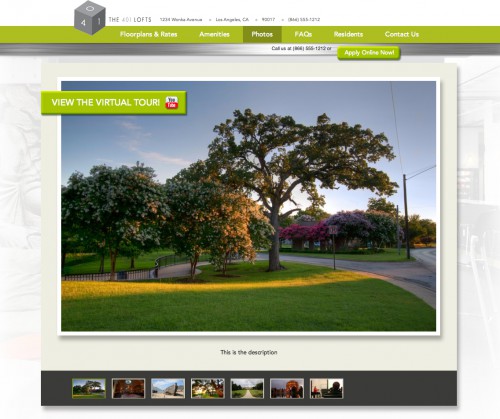
I created a page template called “Photos” which replaces the content area with a photo rotator. But if you edit the page, the edit screen was pretty useless. There’s a big empty wysiwyg, and to get to the actual images in the gallery you have to click a small icon, then go to the Gallery tab.
I’ve added the plugin, along with some code that limits the metabox to this page template. I’ve also added the following code to the theme’s functions.php file to remove the post editor on this page template:
| <?php | |
| /** | |
| * Hide Editor | |
| * @author Bill Erickson | |
| * @link http://www.billerickson.net/code/hide-editor-on-specific-page-template/ | |
| */ | |
| function be_hide_editor() { | |
| // Get the Post ID | |
| $post_id = false; | |
| if( isset( $_GET['post'] ) ) | |
| $post_id = $_GET['post']; | |
| elseif( isset( $_POST['post_ID'] ) ) | |
| $post_id = $_POST['post_ID']; | |
| $post_id = intval( $post_id ); | |
| if( ! $post_id ) | |
| return; | |
| $current_template = get_page_template_slug( $post_id ); | |
| $exclude_on = array( 'group-classes.php', 'trainers.php' ); | |
| if( in_array( $current_template, $exclude_on ) ) | |
| wp_enqueue_style( 'hide-editor', get_stylesheet_directory_uri() . '/css/hide-editor.css' ); | |
| } | |
| add_action( 'admin_enqueue_scripts', 'be_hide_editor' ); |
| #postdivrich{display: none;} |
So now this is what they see when editing that page:
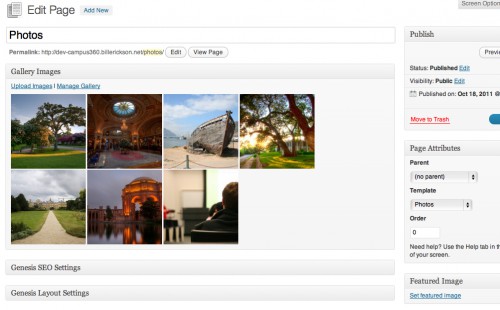
This is by far a much easier user interface for this specific page template. And even if your page isn’t solely a gallery, I think this is a useful plugin for quickly seeing which images you have attached to the page or displaying in a gallery/rotator.

Cathy says
This is fantastic!! I do have a lot of Galleries for clients, and just accepted that the interface was a bit difficult to use at this point. I suppose I’ll have to look into that admin_init!!
Thank you!
Pothi Kalimuthu says
Awesome work. I was in a similar situation too where I had to deal with tons of images with no way to insert or delete a bunch of images of a post directly and easily. This plugin would be big time saver when I get into such projects. I really appreciate your time creating this plugin. Thanks.
Jez says
Is it possible to attach it to just specific custom post types, if so hows it done?
Thanks 🙂
Bill Erickson says
Yes you can, using the be_gallery_metabox_post_types filter.
add_filter( 'be_gallery_metabox_post_types', 'be_show_on_events' );

function be_show_on_events( $post_types ) {

	$post_types = array( 'events' );

	return $post_types;

}
By default $post_types = array( ‘post’, ‘page’ ). You can overwrite it like in the above example, or add to it: $post_types[] = ‘event’; That would make it apply to posts, pages, and events.
Jez says
Thanks Bill.
So i install the plugin, add your above code to functions.php and it shows up in the appropriate custom post type?
I’ll give it a go. 🙂
Cor van Noorloos says
Hello Bill,
I was just wondering on how to best/you would explain the WordPress gallery/WordPress image upload feature to your clients?
In example, which is WordPress default, an image can be removed from the post, but can still be listed (and shown by your plugin) in the WordPress (post-)gallery.
Bill Erickson says
I would say something along these lines:
For every post and page, WordPress automatically builds a gallery of attached images. These are any images you’ve uploaded while editing the post. They might be in the post, but they might also be stored in metadata (like the Featured Image), or might not even be in use at all. If you use the gallery shortcode, or if I build a custom gallery for you, they will all appear in it.
If I added an “Include in Rotator” option to their media gallery, I’d then include a note that their custom gallery only shows images marked appropriately.
Kory says
Great code, thanks for the ultra useful contribution!
cherry says
awesome gallery. how to make vertical thumbnail at left or right of gallery bill?
Bill Erickson says
I’m not sure what you’re asking. This simply adds a box to the “Edit Post” screen that lists all attached images.
Jon says
Great plugin. Could be really useful. Just a few questions.
The Gallery Images meta box only shows up after the page/post has been saved. Is there a way to get it to show up before the page/post is saved?
Is there a way to prevent the “Gallery Block” from being displayed in the editor (after you click “Insert Gallery”?
Would there be any way to set a sort order for the images?
Thanks
Bill Erickson says
1. While it might be possible, it is outside my skillset. You’ll need to use AJAX to check for updates. Right now it’s built like a standard metabox where, when the page loads, it checks the post information.
2. When you say “gallery block”, do you mean the visual layout of the gallery shortcode in the editor? I’m sure you could hide this by adding an editor stylesheet. I personally don’t use the shortcode. In my themes I’ll often automatically display a gallery if there’s images marked for “include in rotator”.
3. Yes, you can filter the query args using
be_gallery_metabox_args. It’s currently set to order by menu_order and order ASC. Here’s an example: https://www.billerickson.net/code/gallery-metabox-sort-by-title/Den says
Thanks for a great solution, but can you tell me, how to attach this meta box for specific post (for example with ID 10, all other pages will not need to use the meta box, so it doesn’t need to be visible for those pages).
Bill Erickson says
Here’s how: https://www.billerickson.net/code/limit-gallery-metabox-to-specific-page/
Den says
Thank you, Bill!
chrismccoy says
maybe add it not just on edit, on new post too, that way you can add images via the post without going to the media manager at the top.
Bill Erickson says
The problem is that when you click “Post > Add New”, there isn’t a post ID in the URL. I haven’t figured out a way to find out the new post’s ID, and the ID is needed to load the appropriate upload window (wrong ID sends images to wrong post).
If you can dig through WP core and find out how the upload image button gets an ID on the new post screen and can submit a patch, I’d happily update the plugin.