Written by Bill EricksonPublished on March 31, 2011Updated on December 21, 2018
Overview
What is metadata?
Metadata is information about an object (like a post) and consists of a key and a value. For instance, when you use a page template, the name of the template used by the page is stored as metadata using the key _wp_page_template. You can add your own metadata to store anything you’d like.
This article focuses on post meta, which is metadata attached to a post of any content type (post, page, or custom post type). There is also user meta (attached to users) and term meta (attached to taxonomy terms, like categories and tags).
What is a metabox? A metabox is simply a box that lets you edit metadata. While WordPress already includes a simple “Custom Fields” metabox (screenshot), it’s best to build your own metabox, which will look better and be easier to use.
A common use for metaboxes is to store structured data that is then displayed by the theme. This allows you to separate the data entry from visual presentation. Instead of trying to get the markup just right on a pricing table, create a “Pricing Table” metabox to collect the fields and let the theme take care of the markup.
How to use meta in your theme? WordPress has a simple function for accessing post meta: get_post_meta( $post_id, $key, true );. See the WordPress Code Reference for more information on its usage.
Depending on the plugin you use and the complexity of the fields you build, you may choose to use plugin-specific functions to access metadata. For instance, with Carbon Fields you can use carbon_get_post_meta( $post_id, $key );. Always first check that the function exists( if( function_exists( 'carbon_get_post_meta' ) ) ) so your site doesn’t break if the plugin is deactivated.
Creating Metaboxes with Plugins
The simplest way to create a metabox is to use a “metabox plugin” to do the heavy lifting. You describe the fields you want and the plugin takes care of actually building the metabox and saving the data.
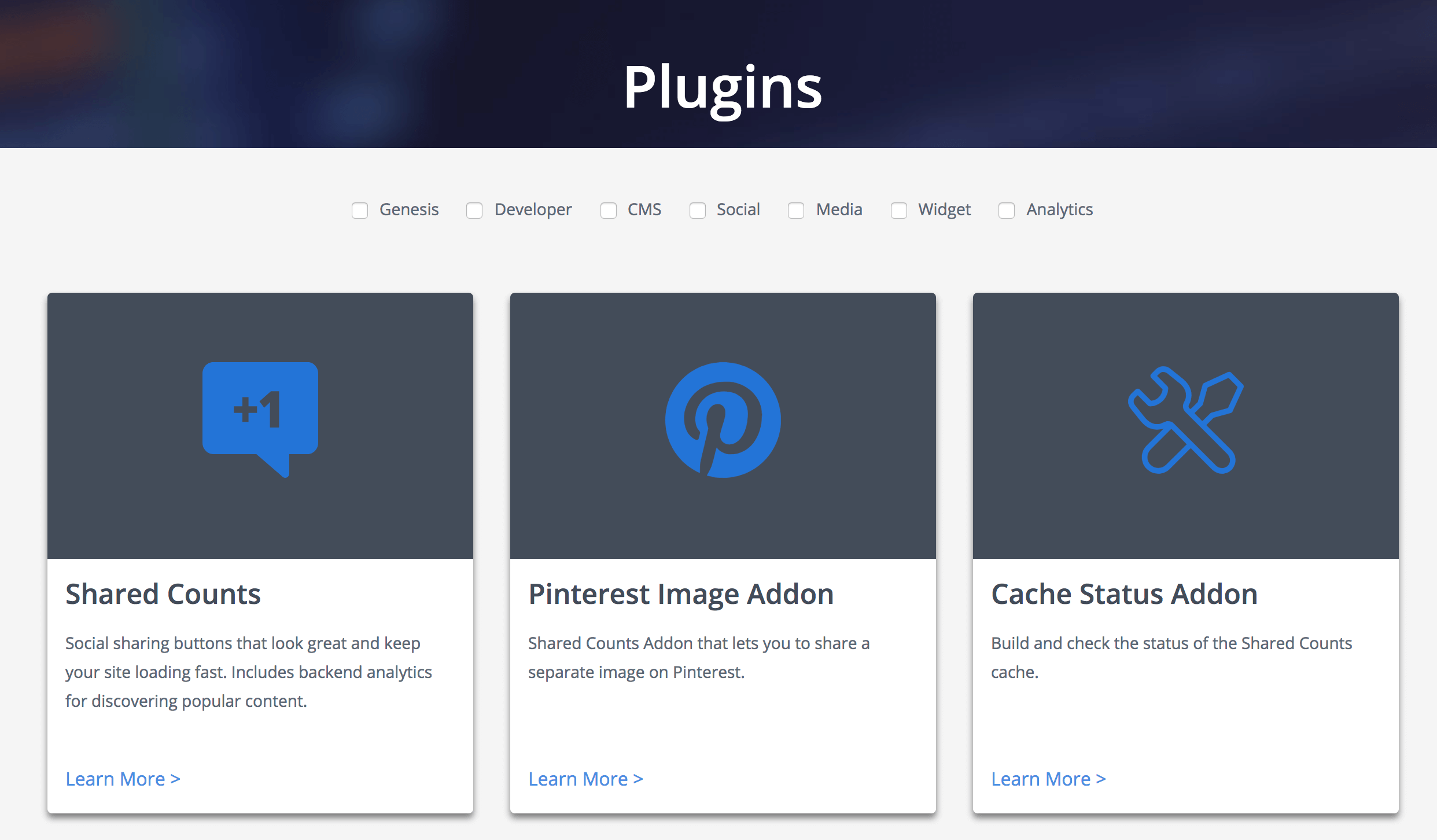
If you will be publicly distributing a plugin, it’s best to build the metabox directly in the plugin itself rather than require a second plugin to be installed. Here are two examples of plugins that use custom metaboxes:
I’ll walk you through building the metabox for this page using three popular metabox plugins.
Advanced Custom Fields
Advanced Custom Fields is the most popular plugin for creating metaboxes. You can easily build a metabox from the WordPress backend with no code at all. You can use the Local JSON feature to save your metabox settings in your theme so it can be version controlled. While the free version of the plugin includes many basic field types, this tutorial uses the “Repeater” field which is only available in ACF Pro.
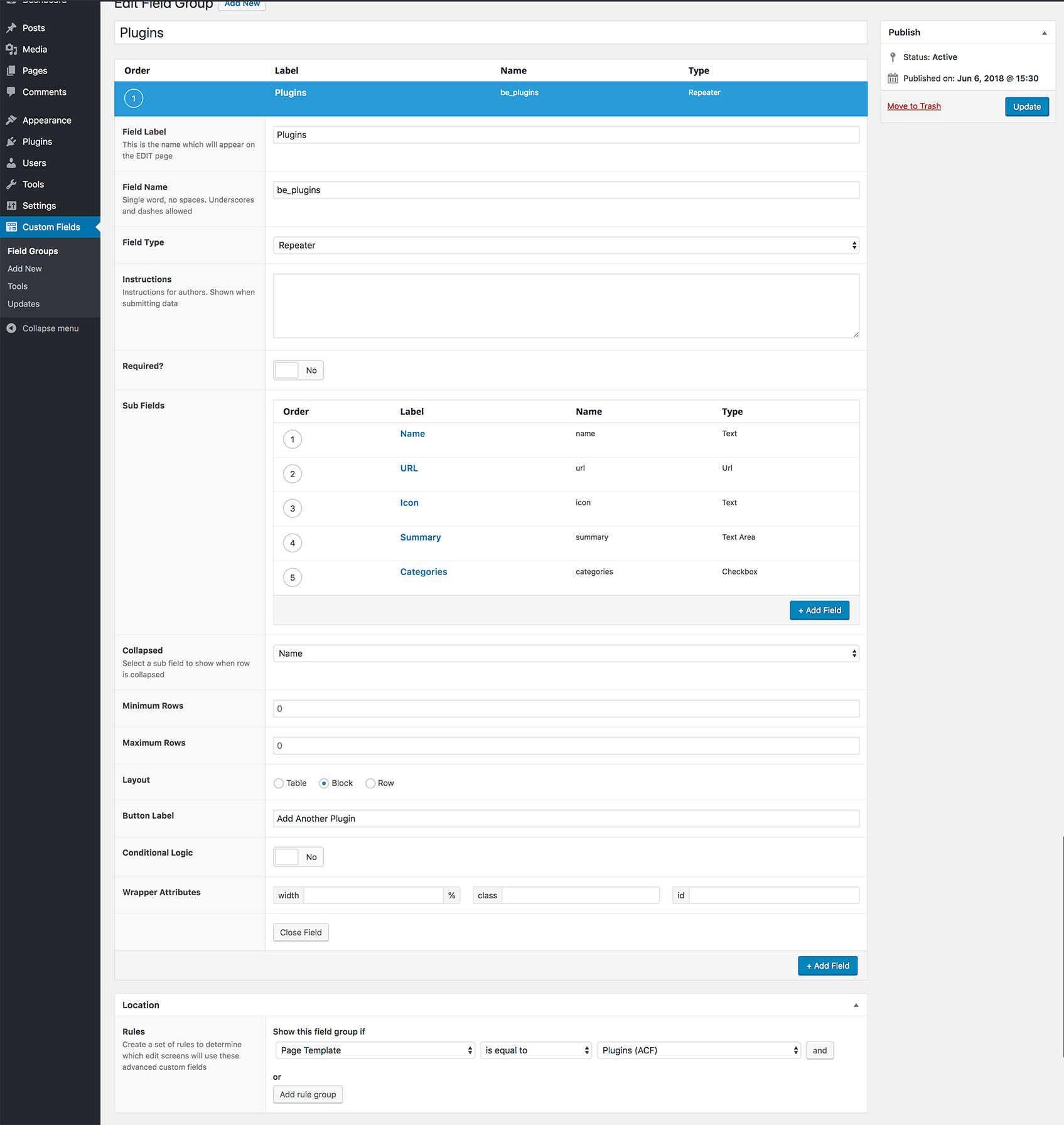
In the backend of your site, go to Custom Fields > Field Groups and click “Add New”. Give your metabox a name at the top, then click “Add Field” to add your fields. Here is a list of the available field types.
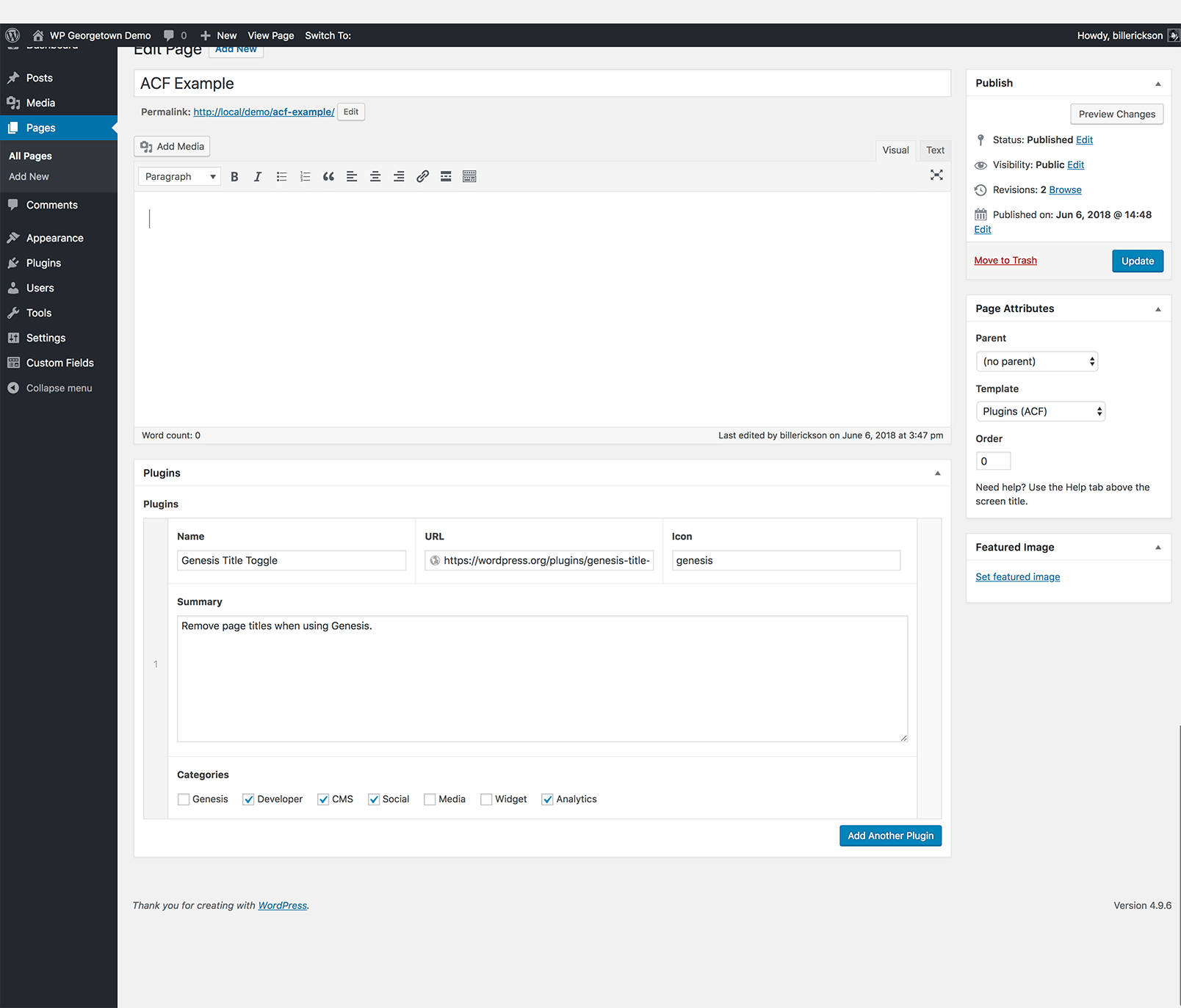
I’m adding a repeater field, and inside of that I’m adding some text, textarea, and checkbox fields. I’m also setting the “width” on the first 3 fields to 33% so they appear in three columns.
In the “Location” section you can set rules that determine where this metabox appears. I’m limiting this metabox to appear on pages using the “Plugins (ACF)” template.
To access the data in your theme, you can either use the WordPress core function get_post_meta() or the ACF functions. I’m using the ACF functions in the template file below. Here’s the raw metadata stored in the database.
To keep the example simple and easily comparable between plugins, I’m putting all the data into an array and passing it to a function that builds the plugin listing.a
This file contains hidden or bidirectional Unicode text that may be interpreted or compiled differently than what appears below. To review, open the file in an editor that reveals hidden Unicode characters.
Learn more about bidirectional Unicode characters
Carbon Fields is another great metabox tool. You build metaboxes using code rather than a UI like AC. The code is modern and easy to read, and the resulting metaboxes look great. It takes the best from both ACF and CMB2 and improves upon it. They are also working on a block builder for the new block editor.
Installing the plugin is more difficult than the others. While there is a Carbon Fields plugin in the WordPress plugin repository, it’s not up-to-date. They made non-backwards-compatible changes and decided not to update the plugin repo. You can either use Composer or download the plugin here.
Once installed and active, create carbon-fields.php file in your core functionality plugin (preferred) or theme. See the documentation for more information on how to build a metabox.
This file contains hidden or bidirectional Unicode text that may be interpreted or compiled differently than what appears below. To review, open the file in an editor that reveals hidden Unicode characters.
Learn more about bidirectional Unicode characters
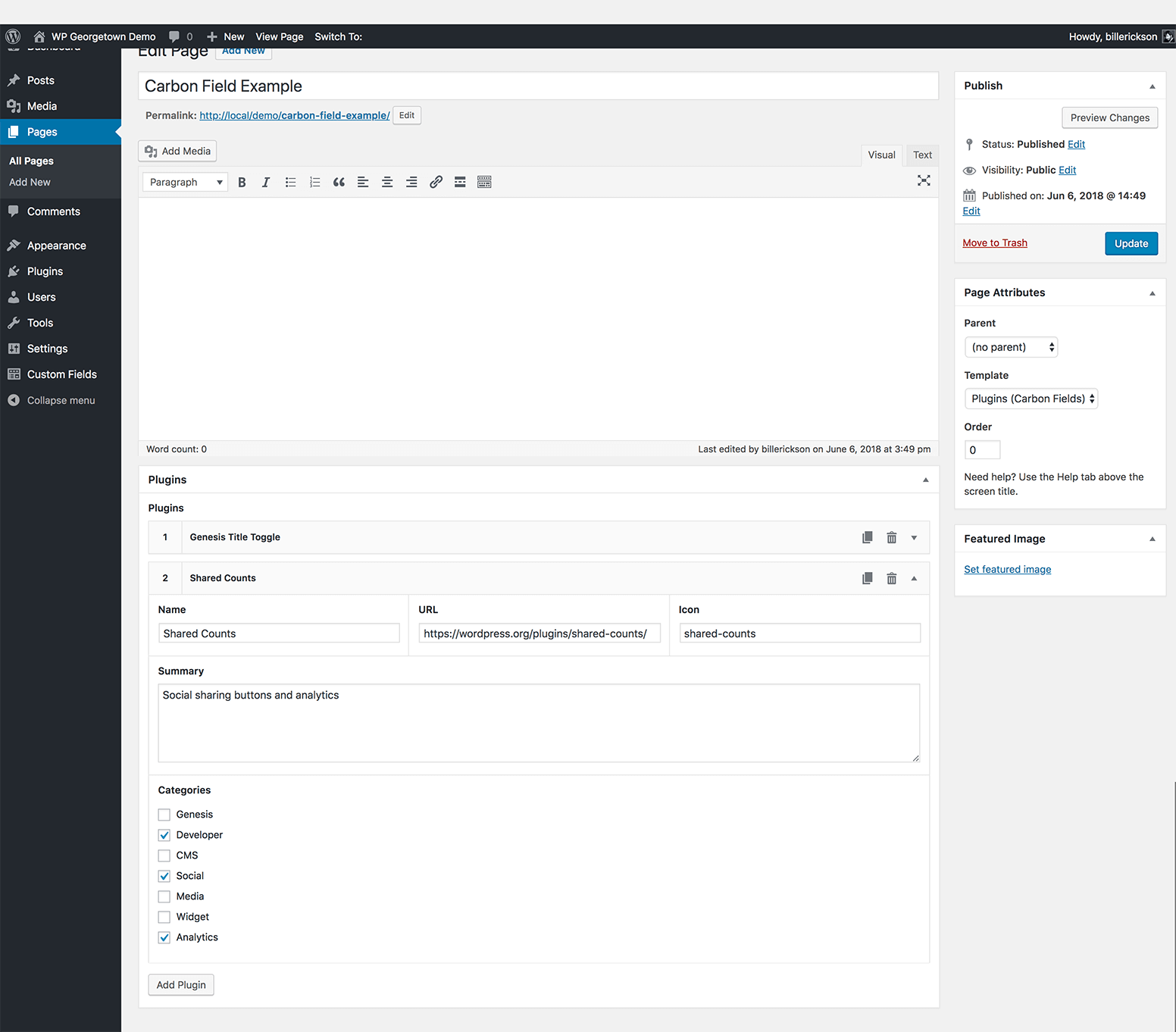
I have it set to ->set_collapsed( true ) so when you load the page you only see the small header bars (like “Genesis Title Toggle” below), but in this screenshot I’ve expanded the second entry.
I’m using the plugin functions for accessing the metadata. In case you’re curious, here’s the raw metadata that’s saved to the database. It isn’t as easy to follow as ACF or CMB2 so I definitely recommend using the plugin functions. While it is all stored as separate meta, on “complex” fields carbon_get_post_meta() will return a single array containing all the data.
Here’s the template file:
This file contains hidden or bidirectional Unicode text that may be interpreted or compiled differently than what appears below. To review, open the file in an editor that reveals hidden Unicode characters.
Learn more about bidirectional Unicode characters
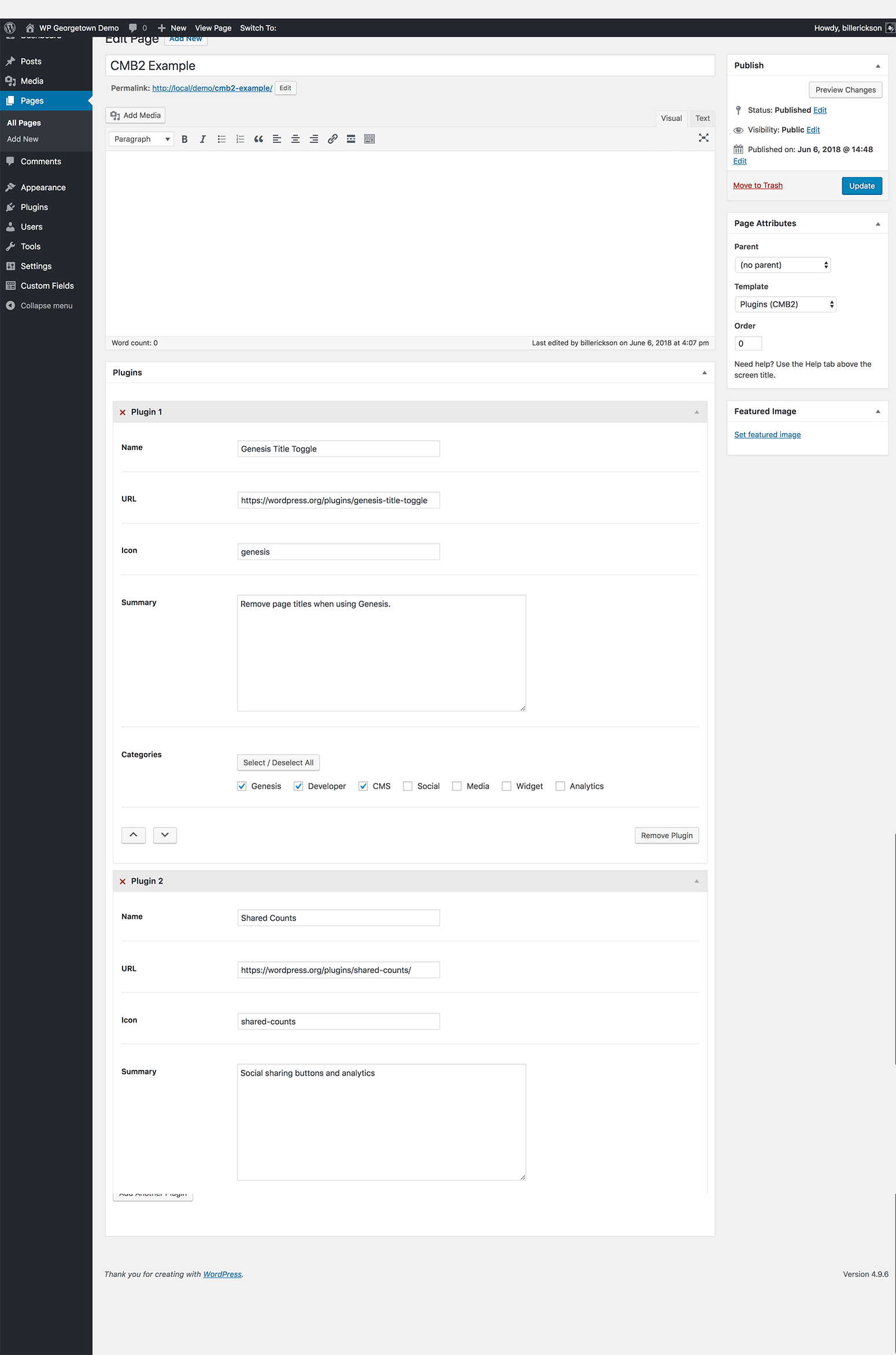
CMB2 is the most developer focused of these three plugins. It’s infinitely extensible and often used in large projects since every aspect can be customized, including custom styles for the metabox. But it can be a bit difficult to learn and doesn’t look as good out of the box as the other plugins I’ve covered.
You can either use the WordPress plugin (as I have done) or include the CMB2 code directly in your theme/plugin. It’s smart enough to only load once when multiple copies are enqueued, and always select the most recent version.
In my core functionality plugin I created cmb2.php and added the following:
This file contains hidden or bidirectional Unicode text that may be interpreted or compiled differently than what appears below. To review, open the file in an editor that reveals hidden Unicode characters.
Learn more about bidirectional Unicode characters
CMB2 uses the standard WordPress function get_post_meta() for retrieving meta, so there are no plugin-specific functions you need to learn.
Because we are using the “Group” field type for repeatable fields, it stores all of that data in a single post_meta field as a serialized array (see the raw metadata here), which WordPress unserializes into a standard array. Here’s the page template code:
This file contains hidden or bidirectional Unicode text that may be interpreted or compiled differently than what appears below. To review, open the file in an editor that reveals hidden Unicode characters.
Learn more about bidirectional Unicode characters
I thought it would be fun to test a variety of open source LLMs on actual client work using Codex cli. I created a benchmark test based on real client…
TwentyTen CRM is a theme specifically designed to manage your customers, from initial contact to project completion. It’s highly customizable and free.
A hybrid WordPress theme uses theme.json to define styles and customize the block editor while also using traditional PHP template files. Hybrid themes leverage the block editor for content but…
With a header block, you can customize your page header directly in the Gutenberg block editor.
Reader Interactions
Comments are closed. Continue the conversation with me on Twitter: @billerickson
Comments
Adam W. Warnersays
Great stuff! Just downloaded and the .zip did not contain a /metabox/ directory as indicated above. Created it and I’m on my way…
Adam W. Warnersays
Hey Bill,
My intention is to use this on a Genesis Child theme, but I think I’m missing a step.
I included this line in my child theme functions.php file:
require_once(CHILD_DIR.’/lib/metabox/init.php’);
Warning: Invalid argument supplied for foreach() in /home/mysite/public_html/mydomain.com/wp-content/themes/endeavor/lib/metabox/init.php on line 35
Line 35 of init.php contains this line: (some syntax removed for commenting purpose)
cforeach ( $meta_boxes as $meta_box ) {
Any idea what could be causing this? My editor page still loads, but with no meta boxes from example-functions.php
Bill Ericksonsays
Are you sure you formatted your $meta_boxes[] array correctly? Can you try it using the code I provided above (if you don’t have a “rotator” post type change it to ‘pages’ => array(‘post’) )
Adam W. Warnersays
Yay! Working now.
First of all, I was being dense and didn’t create a proper function for this in my functions.php file…der!
Second, your test sent me in the right direction as I did get the Rotator function to show in my post editor.
Third, I grabbed all of the functions from the example-functions.php file and they didn’t show. Looking through the example functions, I had to change:
‘pages’=>array(‘pages’) to ‘pages’=>array(‘posts’). Then the extra metaboxes appeared in my post editor:)
Thanks for your guidance, and to all of you for the cool code!
One follow up if I may. Would I need to create a separate register post type function in order to show these meta boxes on only that post type? Then simply change the post type above?
Or do I need to create the custom post type within the above function?
Please excuse my naivety, I’m still learning CPTs…
Bill Ericksonsays
In my “genesis-child” theme (the base theme I build everything from), I have one function that registers post types, one for taxonomies, and one for meta boxes ( this one). So you would just need to register the post type somewhere (not necessarily in this function) and then the pages(‘post-type’) will work.
Also keep in mind that you can have as many meta boxes as you like in this one function. Just do
Great, thanks for the clarification, once I get this down, the sky is the limit;)
Since I posted the above I researched some CPT tutorials and copy/pasted the CPT code. It didn’t work. While testing, I copied in a duplicate CPT and renamed the variables. Then my new one showed up, but not the original example.
After some further finagling I’m convinced something strange is happening, it’s probably so simple I’m missing it, but I can duplicate this behavior consistently….
…I have two CPTs registered in functions.php. Both are exactly the same except that I have changed the names of the labels. Only the second one listed in functions.php shows in my admin menu. When I remove the one on top, then the CPT disappears from my admin area. When I put it back, again, only the second CPT registered shows up in admin. If I switch the two around…again, whatever CPT is lowest in my functions.php is registered and showing.
I have looked for any differences and I don’t see any!
I know this is beyond the scope of your post here, so feel free to ignore my ranting here, but if you have any thoughts of what would cause such a thing, I’m all ears.
Here are the functions as they appear in my functions.php file in my Genesis child theme: http://snipt.org/wpgoi
Thanks for your code and help already given:)
Bill Ericksonsays
I dropped that code in my functions.php file and it worked just fine – both post types showed up. Maybe it’s an issue with some other code in your functions file?
Adam W. Warnersays
Hmmm. Yeah, must be, thanks for checking. I’ll report back when I find the culprit…
Adam W. Warnersays
Plugin conflict. Premise from CopyBlogger Media. It creates CPTs (custom landing pages)…going to submit bug report now.
Adam W. Warnersays
Looks like it was a menu position conflict. I added the menu_position argument to my CPT and all are visible now.
@adam you should be able to use the Custom Meta Boxes with any post types, including ones you or a plugin create. Just plugin in the CPT slug into the array 🙂
Charlie Chauvinsays
Bill,
I think this is great and I love the way it works!
One question that I haven’t been able to find and answer for, and I apologize for my lack of know-how, but how to I call this information to get it to show up on a post page? I am able to customize the functions and it all shows up on the back end as I planned. I just can’t figure out how to get my “project_text” or anything else to show up on a page. Can you provide me with a sample php to call this info?
Am I going about this wrong:
ID, ‘project_text’, true); ?>
Thank you sir!
And here is my functions to see if they are correct:
add_action( ‘init’ , ‘be_create_metaboxes’ );
function be_create_metaboxes() {
// Include & setup custom metabox and fields
$prefix = ‘cmb_’;
$meta_boxes = array();
$meta_boxes[] = array(
‘id’ => ‘project_statistics’,
‘title’ => ‘Project Statistics’,
‘pages’ => array(‘post’), // post type
‘context’ => ‘normal’,
‘priority’ => ‘high’,
‘show_names’ => true, // Show field names on the left
‘fields’ => array(
array(
‘name’ => ‘Project Stats’,
‘desc’ => ‘Enter the stats for this project below’,
‘type’ => ‘title’
),
array(
‘name’ => ‘Main Project Image’,
‘desc’ => ‘Upload more project images or enter an URL.’,
‘id’ => $prefix . ‘main_project_image’,
‘type’ => ‘file’
),
array(
‘desc’ => ‘field description (optional)’,
‘id’ => $prefix . ‘project_text’,
‘type’ => ‘wysiwyg’
),
array(
‘name’ => ‘More Project Images’,
‘desc’ => ‘Upload more project images or enter an URL.’,
‘id’ => $prefix . ‘more_project_images’,
‘type’ => ‘file’
),
)
);
require_once(TEMPLATEPATH . ‘/lib/metabox/init.php’);
}
Bill Ericksonsays
Just use something like this:
ID, ‘project_text’, true);
echo $project_text;
?>
Charlie Chauvinsays
Bill,
I had located something very similar before you responded, so I wasn’t that far of, However even with your suggested php I still have not been able to get this to work. I even tried it on the “twentyten” theme and have had absolutely no luck at getting anything to show up.
I can add and remove all day from the admin/editor by modifying the functions, I just can’t get that data to populate to the live post page. Am I missing something. Do I need to register something else in the functions?
What you have created is so clean and awesome, I’d love to be able to use it but I don’t see how. Thank You!
-charlie
Bill Ericksonsays
I’d have to see your code to see what’s wrong, but there’s a few possible causes:
– You’re forgetting to put global $post; before using $post->ID in the get_post_meta() function.
– You’re using the wrong meta_key. add the_meta(); to your theme (inside the loop) to list all metadata
– There’s an issue with your metabox that prevents the data from saving. You’d know if this was happening though, because after you click “Save” you wouldn’t see the post.
Either run the_meta(); in the loop or turn on custom fields for that post to look at all the meta data. Make sure you’re calling the right field name, and that you use global $post;
Charlie Chauvinsays
AHA!
putting the_meta() in the loop is what did it for me. This opens up a whole nother can of worms to work with. I appreciate the shove in the right direction!
Charlie Chauvinsays
One other thing that was throwing me off was the prefix included in the functions you provide. So in my code ‘project_text’ has to be ‘cmb_project_text’ as well as any other instances using the custom meta boxes. I assume there is a rhyme or reason, but are the prefixes actually needed? It would seem easier/shorter without.
Again, please forgive my lack of knowledge just wanted to post my additional findings in attempt to help others. Thanks!


Adam W. Warner says
Great stuff! Just downloaded and the .zip did not contain a /metabox/ directory as indicated above. Created it and I’m on my way…
Adam W. Warner says
Hey Bill,
My intention is to use this on a Genesis Child theme, but I think I’m missing a step.
I included this line in my child theme functions.php file:
require_once(CHILD_DIR.’/lib/metabox/init.php’);
Warning: Invalid argument supplied for foreach() in /home/mysite/public_html/mydomain.com/wp-content/themes/endeavor/lib/metabox/init.php on line 35
Line 35 of init.php contains this line: (some syntax removed for commenting purpose)
cforeach ( $meta_boxes as $meta_box ) {
Any idea what could be causing this? My editor page still loads, but with no meta boxes from example-functions.php
Bill Erickson says
Are you sure you formatted your $meta_boxes[] array correctly? Can you try it using the code I provided above (if you don’t have a “rotator” post type change it to ‘pages’ => array(‘post’) )
Adam W. Warner says
Yay! Working now.
First of all, I was being dense and didn’t create a proper function for this in my functions.php file…der!
Second, your test sent me in the right direction as I did get the Rotator function to show in my post editor.
Third, I grabbed all of the functions from the example-functions.php file and they didn’t show. Looking through the example functions, I had to change:
‘pages’=>array(‘pages’) to ‘pages’=>array(‘posts’). Then the extra metaboxes appeared in my post editor:)
Thanks for your guidance, and to all of you for the cool code!
One follow up if I may. Would I need to create a separate register post type function in order to show these meta boxes on only that post type? Then simply change the post type above?
Or do I need to create the custom post type within the above function?
Please excuse my naivety, I’m still learning CPTs…
Bill Erickson says
In my “genesis-child” theme (the base theme I build everything from), I have one function that registers post types, one for taxonomies, and one for meta boxes ( this one). So you would just need to register the post type somewhere (not necessarily in this function) and then the pages(‘post-type’) will work.
Also keep in mind that you can have as many meta boxes as you like in this one function. Just do
$meta_boxes = array();
$meta_boxes[] = array(
…
);
$meta_boxes[] = array(
…
);
Adam W. Warner says
Great, thanks for the clarification, once I get this down, the sky is the limit;)
Since I posted the above I researched some CPT tutorials and copy/pasted the CPT code. It didn’t work. While testing, I copied in a duplicate CPT and renamed the variables. Then my new one showed up, but not the original example.
After some further finagling I’m convinced something strange is happening, it’s probably so simple I’m missing it, but I can duplicate this behavior consistently….
…I have two CPTs registered in functions.php. Both are exactly the same except that I have changed the names of the labels. Only the second one listed in functions.php shows in my admin menu. When I remove the one on top, then the CPT disappears from my admin area. When I put it back, again, only the second CPT registered shows up in admin. If I switch the two around…again, whatever CPT is lowest in my functions.php is registered and showing.
I have looked for any differences and I don’t see any!
I know this is beyond the scope of your post here, so feel free to ignore my ranting here, but if you have any thoughts of what would cause such a thing, I’m all ears.
Here are the functions as they appear in my functions.php file in my Genesis child theme: http://snipt.org/wpgoi
Thanks for your code and help already given:)
Bill Erickson says
I dropped that code in my functions.php file and it worked just fine – both post types showed up. Maybe it’s an issue with some other code in your functions file?
Adam W. Warner says
Hmmm. Yeah, must be, thanks for checking. I’ll report back when I find the culprit…
Adam W. Warner says
Plugin conflict. Premise from CopyBlogger Media. It creates CPTs (custom landing pages)…going to submit bug report now.
Adam W. Warner says
Looks like it was a menu position conflict. I added the menu_position argument to my CPT and all are visible now.
‘menu_position’ => 5,
http://codex.wordpress.org/Function_Reference/register_post_type#Arguments
Jared says
@adam you should be able to use the Custom Meta Boxes with any post types, including ones you or a plugin create. Just plugin in the CPT slug into the array 🙂
Charlie Chauvin says
Bill,
I think this is great and I love the way it works!
One question that I haven’t been able to find and answer for, and I apologize for my lack of know-how, but how to I call this information to get it to show up on a post page? I am able to customize the functions and it all shows up on the back end as I planned. I just can’t figure out how to get my “project_text” or anything else to show up on a page. Can you provide me with a sample php to call this info?
Am I going about this wrong:
ID, ‘project_text’, true); ?>
Thank you sir!
And here is my functions to see if they are correct:
add_action( ‘init’ , ‘be_create_metaboxes’ );
function be_create_metaboxes() {
// Include & setup custom metabox and fields
$prefix = ‘cmb_’;
$meta_boxes = array();
$meta_boxes[] = array(
‘id’ => ‘project_statistics’,
‘title’ => ‘Project Statistics’,
‘pages’ => array(‘post’), // post type
‘context’ => ‘normal’,
‘priority’ => ‘high’,
‘show_names’ => true, // Show field names on the left
‘fields’ => array(
array(
‘name’ => ‘Project Stats’,
‘desc’ => ‘Enter the stats for this project below’,
‘type’ => ‘title’
),
array(
‘name’ => ‘Main Project Image’,
‘desc’ => ‘Upload more project images or enter an URL.’,
‘id’ => $prefix . ‘main_project_image’,
‘type’ => ‘file’
),
array(
‘desc’ => ‘field description (optional)’,
‘id’ => $prefix . ‘project_text’,
‘type’ => ‘wysiwyg’
),
array(
‘name’ => ‘More Project Images’,
‘desc’ => ‘Upload more project images or enter an URL.’,
‘id’ => $prefix . ‘more_project_images’,
‘type’ => ‘file’
),
)
);
require_once(TEMPLATEPATH . ‘/lib/metabox/init.php’);
}
Bill Erickson says
Just use something like this:
ID, ‘project_text’, true);
echo $project_text;
?>
Charlie Chauvin says
Bill,
I had located something very similar before you responded, so I wasn’t that far of, However even with your suggested php I still have not been able to get this to work. I even tried it on the “twentyten” theme and have had absolutely no luck at getting anything to show up.
I can add and remove all day from the admin/editor by modifying the functions, I just can’t get that data to populate to the live post page. Am I missing something. Do I need to register something else in the functions?
What you have created is so clean and awesome, I’d love to be able to use it but I don’t see how. Thank You!
-charlie
Bill Erickson says
I’d have to see your code to see what’s wrong, but there’s a few possible causes:
– You’re forgetting to put global $post; before using $post->ID in the get_post_meta() function.
– You’re using the wrong meta_key. add the_meta(); to your theme (inside the loop) to list all metadata
– There’s an issue with your metabox that prevents the data from saving. You’d know if this was happening though, because after you click “Save” you wouldn’t see the post.
Either run the_meta(); in the loop or turn on custom fields for that post to look at all the meta data. Make sure you’re calling the right field name, and that you use global $post;
Charlie Chauvin says
AHA!
putting the_meta() in the loop is what did it for me. This opens up a whole nother can of worms to work with. I appreciate the shove in the right direction!
Charlie Chauvin says
One other thing that was throwing me off was the prefix included in the functions you provide. So in my code ‘project_text’ has to be ‘cmb_project_text’ as well as any other instances using the custom meta boxes. I assume there is a rhyme or reason, but are the prefixes actually needed? It would seem easier/shorter without.
Again, please forgive my lack of knowledge just wanted to post my additional findings in attempt to help others. Thanks!